
This was the first tool I actually paid a subscription for. I had a PILE of classes and presentations and was very bored with PowerPoint. It took a bit of learning to work out how to adjust the level of control I had over the content (from pretty much none to control freak) but once I sorted that, it’s made creating attractive presentations so much more fun.
It takes prompts, text, or files and turns them into presentations, pdfs, web pages and more. It’s also the easiest and cheapest way (£6 per month here in the UK) to get paid-level access to a bunch of great AI image generators.
Even before that, though, it’s got a pretty generous free trial – you get 400 credits and presentation generation takes 40 credits, so that’s 10 presentations before you need to top up (by subscribing, or by recommending Gamma to other people who then sign up).
The paid version gives you more cards (10 max for the free version, 20 for the £6 and 60 for the £12 options), and access to a couple of other image generators. I’d still go month-by-month rather than pre-paying a year though.
So, how does it work and what does it look like?

Let’s start with the ‘popular’ option – creating a presentation with a single-line text prompt…
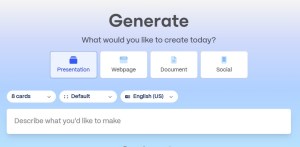
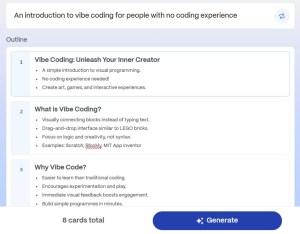
I’ve gone with a prompt for vibe coding seeing as it’s a bit of a thing right now, and I know (just) enough to be able to understand whether I get a decent output (spoiler, no, Gamma’s much better with less technical topics).
One element I do like though, is that within language, I can choose UK English, so I don’t have to go through and adjust spellings.
And here’s the output. Looks amazing, but the content itself isn’t great.
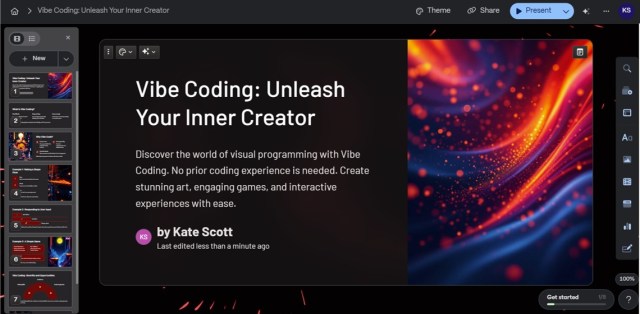
Taking control of your content
I prefer to import something I’ve made elsewhere. In this case, a super basic presentation I used recently.

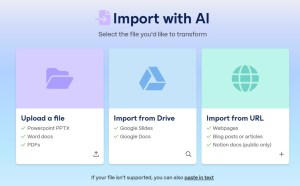

It’s the second Import screen that’s key to your control level. Transform content will change what you upload (and is the option I went for in this instance). Visual import doesn’t edit your content at all, it just plays with layout and images.
You can see the difference in control level in the outline screen – compare this to the one above from the text prompt, and how many more options you have here.
Note: ‘Preserve’ will still change things, just not as much.

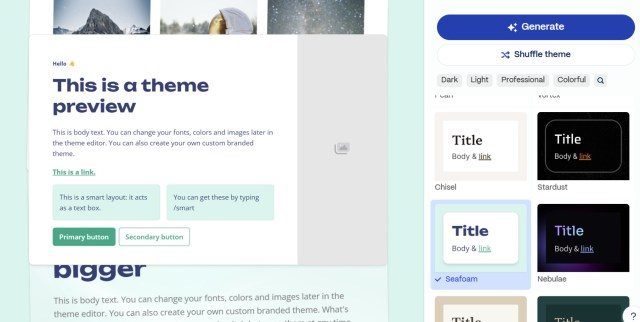
Choose your theme.
You can also explore these ahead of time from the home screen, and create your own – either from prompts or by importing another presentation.
And here’s the result. I changed a couple of the images, and the layout of one of the slides (let me know if you want me to run through any of that, but this article is getting pretty into the weeds already).

So, that’s Gamma, and I’m using their referral link, so we each get an extra 200 credits if you sign up through it.
The usual caveat: This area of tech is moving insanely fast and while I’m aiming to stick to the foundations here, if you’re reading this post more than a month after it was published, check the details, things could be (are probably) out of date.
 AI for Squishy Humans