
While most attention around AI video generation is on tools like Veo, Runway ML, and Sora, there’s another tool you might find interesting to play with – InVideo ai.
InVideo has two main product lines—InVideo AI (AI-powered video generation) and InVideo Studio (traditional template-based editing). Needless to say, it’s the AI one I’ve been exploring, I’ve got no idea about the non-AI version.
Unlike the other Video Generators we looked at, InVideo doesn’t rely on generative AI for the actual clips, at least on the free tier, it pulls together royalty-free stock footage into a collage / montage-style video that lends itself really well to how-to or explainer videos.
Having said that, there are times when the link between the words in the script, and the video chosen by the AI can be hilarious. Logical, in weird ways, but hilarious.
I created two videos, one on the writing craft, and the other a story about learning to surf. The writing one is just over 8 minutes long, the surfing one is just over 1. In both cases, a heck of a lot longer than the usual 4 second effort from the generator models
One thing to watch out for when playing with this area is that whatever LLM they’re using in the back end for the script, is not up to date. I tried out a prompt on vibe coding and it clearly had no idea what that was – the whole trend on vibe coding is only a few months old.
Another thing is that you’re best off using this in either Chrome or Edge. You can prompt it in Firefox but it can’t play back the video for some reason.
Having said all that, here’s a quick run-through on the steps to build a video…
First up, a text prompt, as usual, the more specific you can be, the better your results. The surfing video prompt is as follows: Create a 1 minute long animated film for YouTube about a girl learning how to surf. Settings: use only generated clips (spoiler, this bit didn’t work as you can only generate clips on a paid plan), make the background music bright and happy, add any subtitle, use any voice with an Australina voice for the narrator.
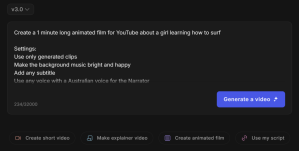
The reason this prompt sounds a bit weird is that I used one of the option buttons below the prompt window and basically built it using a sort of template of theirs.
Then, you get some additional options to pick and choose between:

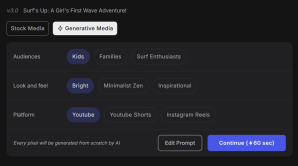
You’ll see they’re different, tailored to your prompt and content. These seem to just be suggestions though, I wanted the writing video to be 4 minutes long, it was 9. But I had asked it to cover a lot of ground.
If you want to do something you need to pay for, you’ll get something like this…
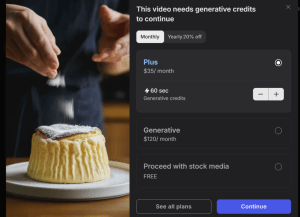
And then, you wait…

You can also see both videos on the AISH YouTube Channel.
It doesn’t have to end there. You can now edit four different elements of your video:

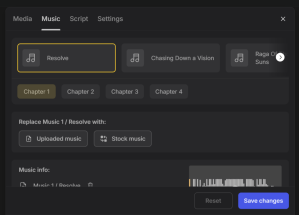
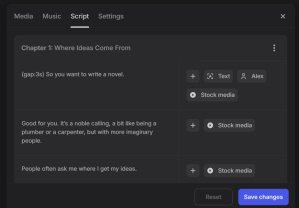
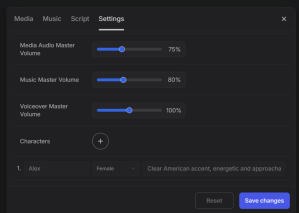
If you want to download your video, you absolutely can, even on the free tier, you just need to change the default download options to Stock Watermarks, and Normal branding:

And if you want to have a play with this, the InVideo free tier gives you 10 minutes of AI-created video a week, with watermarked and branded video downloads. They may not be the prettiest things you’ll see, but it’s a fun variant on a storyboard or slide show.
 AI for Squishy Humans