
This is one of those random Google side projects that just takes off (best known one is Gmail), possibly because it’s the best thing since sliced bread for academic researchers and other people who need to chomp through a large amount of very specific information.
The way Notebook LM works is that it uses an LLM-type interaction (prompts and queries in natural language), but ONLY refers to sources you’ve provided in order to answer. And the mike-drop moment was when they added the podcast feature (which is apparently going to be rolled into Gemini as well).
The easiest way to explain this is to take you through an example.
Let’s say we want to explore ways and tools for using AI to make social media posting a little less of a hassle for someone who already has more than enough on their plate.
The first thing you want is a decent list of quality sources – files or links Notebook LM will refer to. I find the easiest place to start is Perplexity (which we looked at a few weeks ago).
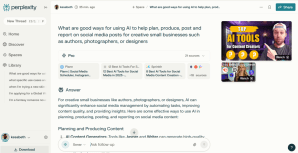

Once you get the query’s answer (left image), you click on the box saying ‘X other sources’ (light blue in the right image) and it gives you a list of all the web pages Perplexity looked at to get the answer – the list of cards on the right side of the right hand image (or it might be in the middle, as a tab sitting behind the main answer. Look through them and decide if any aren’t of decent quality (or which ones are).
Now comes the slightly tedious part – and hopefully this is going to be an area for improvement soon – you need to add each source to Notebook LM, individually… It’ll take web page links, YouTube links (but only if they’re public, and have a text transcript as that’s what the tool actually reads, for now), and pdfs. It can also take .txt, markdown, and audio/MP3 but I’m not sure how often you use those.
You can upload up to 50 sources for a single conversation, which means if you want to review a website, you’ll need to paste in all the individual page links, one by one. It won’t just look at the whole website if you give it the home page. Probably just as well TBH. If it started following links, it wouldn’t know where stop and you’d find answers from the company’s Facebook feed and who knows what else rubbishing up your source.
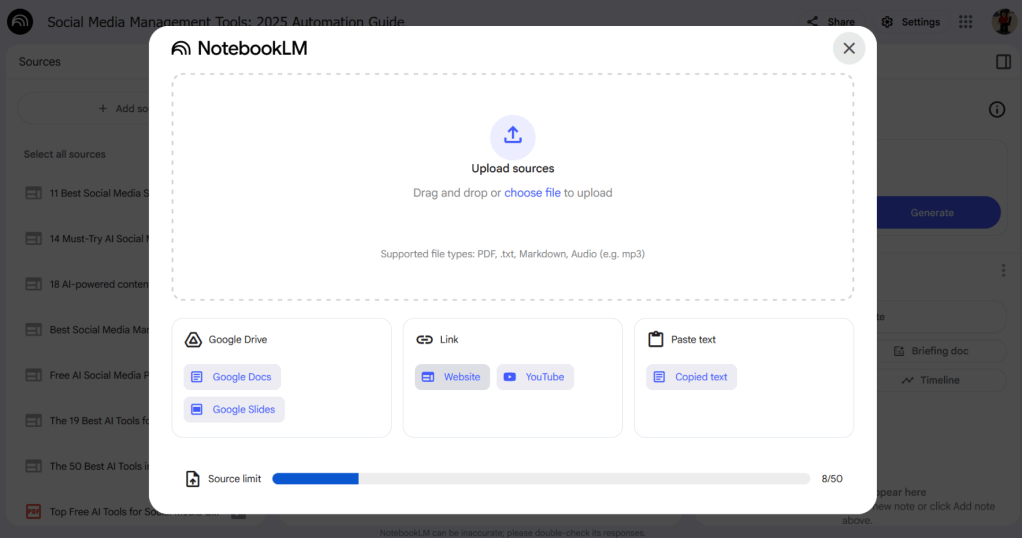
It won’t be able to access everything and that’ll show up as a red highlight in the source feed:

I tend to take a second look at the source and see if I can find an alternative if the information’s worthwhile, otherwise, I just delete it – there’s normally plenty of other options in your Perplexity (or other) list.
The initial introduction in the chat widget/box will only reference the first source you added, but it creates that anew every time you come back into the Notebook. If you want to save anything, you need to Save to note. It also puts a footnote number at the end of every point, so you can see the source (this was SO created by someone with academic research frustrations).
If you un-tick any of the sources in your list, the Notebook will ignore it in subsequent answers (at least until you re-tick it), which can be helpful if you have some varying views in the collection.
The feature that gets the most attention (and I find brilliant) is the audio overview / AI podcast. The tool pulls in all your (ticked at the time) sources and turns them into a podcast-style discussion between two people. It’s astoundingly lifelike and can be very useful (if not a little freaky the first time you listen).

You can only generate it once per Notebook, so take the time to think about what you want it to focus on. That way you can put some custom instructions in before you generate it.
You can listen to the one I created via the button below…it can take a little while to load)
Word is, this podcast feature is going to be rolled out into Gemini, so keep an eye open.
There’s also an interactive mind map feature being added to the Notebooks which I’m looking forward to trying out.
Notebook LM does have its limits, more a function of the underlying LLM, in that if can only process so much information in a given document or conversation. I uploaded a single 83,000 word manuscript and accuracy dropped off significantly after about the first 1/3 of the document (I’ve found the same thing with Chat GPT, Gemini, and Claude). They’re good at honing in on specific elements within larger documents but have trouble doing something that needs it to maintain a thread (such as creating a reverse outline) throughout a full book-length manuscript.
The usual caveat: This area of tech is moving insanely fast and while I’m aiming to stick to the foundations here, if you’re reading this post more than a month after it was published, check the details, things could be (are probably) out of date.
 AI for Squishy Humans
Pingback: AI Admin Assistance – AI for Squishy Humans